1. Introduction
Using containers has become the norm in recent years for deploying new applications. We might use Docker or Podman (or other options) and orchestrate with Docker Swarm or a flavor of Kubernetes. However, most container runtimes execute the process as root on the host; if a container is compromised, there’s a chance the host can be affected. This article shows the procedure to install and use rootless containers with nerdctl.
3. Requirements
We use Archlinux. However, you can use any other distribution. However, consider RedHat based distributions will lean more to Podman
4. High-Level design
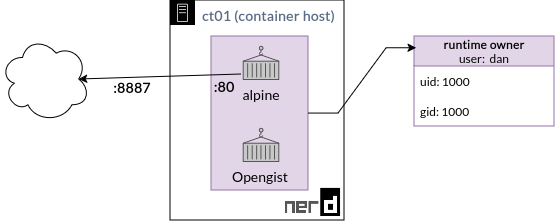
Here is a high-level design of the rootless container:
5. Procedure
5.1 Pre-requirements
To install nerdctl we will use the package available in the Archlinux User Repository (AUR). So, first let’s download an AUR package helper, in my case I will use yay (we could install it manually download the package with a browser and copying to the host).
git clone https://aur.archlinux.org/yay.git
cd yay/
makepkg -si
Next, we validate the kernel module ip_tables is up, which most probably we have it.
➜  ~ lsmod | grep ip_tables
ip_tables              36864  0
x_tables               65536  10 xt_conntrack,nft_compat,xt_multiport,xt_tcpudp,xt_addrtype,xt_nat,xt_comment,ip_tables,xt_MASQUERADE,xt_mark
If not, we load it and make it permanent.
sudo modprobe ip_tables
lsmod | grep ip_tables
sudo echo "ip_tables" > /etc/modules-load.d/iptables.conf
Now, we modify attributes of the system kernel by adding new file to sysctl.d.
sudo vim /etc/sysctl.d/99-rootless.conf
# /etc/sysctl.d/99-rootless.conf
kernel.unprivileged_userns_clone=1
net.ipv4.ping_group_range = 0 2147483647
net.ipv4.ip_unprivileged_port_start=0
Check the following references about each attribute (Important):
- unprivileged_userns_clone
- ipv4.ping_group_range
- ipv4.ip_unprivileged_port_start: optional attribute to use ports under 1024.
Next, we configure the subuids and subgids for the user with the rootless containers and allow processes continue running even if the user log out.
sudo loginctl enable-linger $(whoami)
sudo sudo usermod --add-subuids 100000-165535 --add-subgids 100000-165535 $(whoami)
5.2 Installation
We install the binary of nerdctl (the compilable version is available as well). Then, we run the setup tool for rootless containers, it will apply the necessary changes to make it work
yay -S nerdctl-full-bin
containerd-rootless-setuptool.sh install
We go through the installation of important modules used by nerdctl as buildkit and bypass4netnsd (We could ignore for now bypass4netnsd, but please check this article in how it improves the networking performance in rootless mode)
containerd-rootless-setuptool.sh install-buildkit
systemctl enable --user --now containerd && systemctl enable --user --now buildkit
containerd-rootless-setuptool.sh install-bypass4netnsd
We verify nerdctl is in rootless mode by confirming the security option rootless is present in the following diagnose command.
➜  ~ nerdctl info
Client:
 Namespace: default
 Debug Mode:    false

Server:
 Server Version: v2.0.2
 Storage Driver: overlayfs
 Logging Driver: json-file
 Cgroup Driver: systemd
 Cgroup Version: 2
 Plugins:
  Log:     fluentd journald json-file none syslog
  Storage: native overlayfs
 Security Options:
  seccomp
   Profile: builtin
  cgroupns
  rootless
 Kernel Version:   XXXXXXXXXXXXXXXXXXX
 Operating System: Arch Linux
 OSType:           linux
 Architecture:     x86_64
 CPUs:             4
 Total Memory:     3.811GiB
 Name:             XXXXX
 ID:               XXXXXXXXXXXXXXXXXXXXXXXXXXXXXX
5.3 Running the first container
To run the first container is quite simple, as observed in the following command:
➜  ~ nerdctl run -it --rm -p 8887:80 alpine
/ # cat /etc/os-release
NAME="Alpine Linux"
ID=alpine
VERSION_ID=3.23.3
PRETTY_NAME="Alpine Linux v3.23"
HOME_URL="https://alpinelinux.org/"
BUG_REPORT_URL="https://gitlab.alpinelinux.org/alpine/aports/-/issues"
We are running an Alpine Linux in interactive mode and Forwarding the port 80 to the host port 8887 (if we have a firewall/load balancer, we could avoid enabling the kernel attribute to allow unprivileged use of transport layer ports).
We can create containers using Dockerfiles and also deploy them using nerdctl compose.
Finally, let’s check some other diagnose commands to check the container running.
➜  ~ whoami
dan
➜  ~ nerdctl container ls | grep alpine-8ec2a
8ec2a2ddd19d    docker.io/library/alpine:latest                 "/bin/sh"                 2 minutes ago    Up        0.0.0.0:8887->80/tcp      alpine-8ec2a
➜  ~ nerdctl inspect alpine-8ec2a | grep HostnamePath
        "HostnamePath": "/home/dan/.local/share/nerdctl/1935db59/containers/default/8ec2a2ddd19de39c39db11e053d7286294b84cf04caef5640b24ce267613f2da/hostname",
From the previous commands we can see it is running for the user dan and the data are locally in the home folder for this user
6. Wrap-up and takeaways
I’ve been using it for some time now, and it has been quite stable. nerdctl is not intended for enterprise-grade infrastructures, but it’s a great way to test new features and explore significant security improvements. It also provides an excellent way to understand how namespaces and cgroups work behind the scenes.
I will continue deploying services and testing features being introduced to Docker in future releases. Additionally, it’s a useful way to experiment with containers in an internal environment.
8. References
- https://keloran.dev/post/nerdctl_archlinux/
- https://ackerspace.com/posts/building-a-rootless-container-host-with-containerd/
- https://rootlesscontaine.rs/getting-started/containerd/
- https://andreavouk.com/blog/2025/03/16/replacing-docker-with-nerdctl
- https://github.com/containerd/nerdctl/blob/main/docs/rootless.md
And then, one Thursday, nearly two thousand years after one man had been nailed to a tree for saying how great it would be to be nice to people for a change, a girl sitting on her own in a small café in Rickmansworth suddenly realized what it was that had been going wrong all this time, and she finally knew how the world could be made a good and happy place. This time it was right, it would work, and no one would have to get nailed to anything.