
1. Introduction
Since I arrived to France my home lab has been connected to two power strips. I am not running any mission-critical production environment and the France electric network is quite stable in the region where I live. The over voltage and under voltage are a thing of the past in Venezuela I had electrical outages… every day, and the resilience of my small Pogoplug and the network devices is a case of study.

In the last couple of years I deployed more devices in the lab. So, I must protect them in case of electrical outages to give time to power off the devices in case the outage extends and to clean the AC signal coming to the devices.
This article will explain how I deployed the UPS, to monitor the power load, and basic alert systems if the UPS goes to battery mode.
2. Why?
Why install a UPS? In SOHO or data centers? This brochure explains it briefly.
3. Requirements
-
Raspberry Pi (Hosting the service gathering the data from the UPS), you can use any other system that is always on in your lab, that can connect via USB to the UPS.
-
Data visualization with Home Assistant (Deployed inside a container).
4. Preparation
4.1 High-level design
Check the topology below with the main components of the architecture:
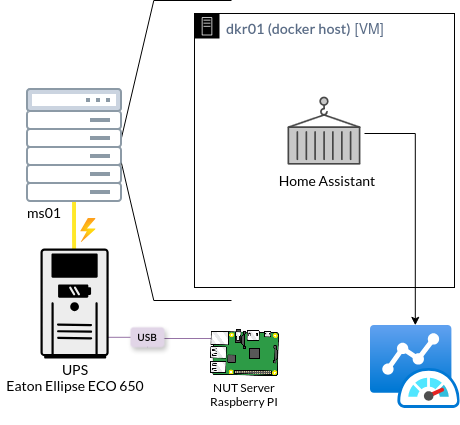
The yellow line illustrate the UPS electrical connection to one server in my home lab (other devices are connected as well).
I am using a container inside the Docker host (dkr01) for visualization and data analysis using Home Assistant.
5. NUT server
We will use Network UPS Tools to process data from the UPS via the USB cable. It is a versatile and open-source tool that can monitor a hundred of UPS models. We will install it in the RPI running Archlinux ARM.
sudo pacman -S nut
sudo pacman -S nut-client nut-server usbutils
To confirm the USB is connected and detected by the RPI. We use the command lsusb
☁  ~  lsusb
Bus 001 Device 001: ID 1d6b:0002 Linux Foundation 2.0 root hub
Bus 001 Device 002: ID 0424:9514 Microchip Technology, Inc. (formerly SMSC) SMC9514 Hub
Bus 001 Device 003: ID 0424:ec00 Microchip Technology, Inc. (formerly SMSC) SMSC9512/9514 Fast Ethernet Adapter
Bus 001 Device 005: ID 067b:2303 Prolific Technology, Inc. PL2303 Serial Port / Mobile Phone Data Cable
Bus 001 Device 006: ID 0463:ffff MGE UPS Systems UPS
Next, we scan using nut-scanner, provided with the NUT package giving information about the UPS connected and the driver required.
☁  ~  sudo nut-scanner
Scanning USB bus.
No IP range(s) requested, skipping SNMP
Scanning XML/HTTP bus.
No IP range(s) requested, skipping NUT bus (old libupsclient connect method)
Scanning NUT simulation devices.
[nutdev-usb1]
    driver = "usbhid-ups"
    port = "auto"
    vendorid = "0463"
    productid = "FFFF"
    product = "Ellipse ECO"
    serial = "000000000"
    vendor = "EATON"
    # bus = "001"
    # device = "006"
    # busport = "004"

# WARNING: all-same character "serial" with 9 copies of '0' (0x30) reported in some devices: nutdev-usb1
Great, it is connected, and the driver is available.
5.1 Configuring NUT server
We will check the files to configure the daemons used by the NUT server.
First, crucial modification to define the usage of the NUT server. The mode netserver allow remote access and enable the 3 NUT layers (driver, upsd and upsmon). Here full details about nut.conf.
# File: /etc/nut/nut.conf
 1   │ MODE=netserver
Next, we gather the information received from nut-scanner and place it inside the file /etc/nut/ups.conf (I created a backup of this file first, which is quite useful for NUT, because it is full of help). The file configures the main daemon for NUT, upsd which uses the driver to report the status of the UPS.
# File: /etc/nut/ups.conf
 1  pollinterval=1
 2  maxretry=3
 3
 4  [eaton]
 5      driver = "usbhid-ups"
 6      port = "auto"
 7      vendorid = "0463"
 8      productid = "FFFF"
 9      product = "Ellipse ECO"
10      #serial = "000000000"
11      vendor = "EATON"
12      desc = "Eaton Ellipse Eco 650USB"
13      # bus = "001"
14      # device = "004"
15      # busport = "004"
We comment serial, because they are only 0s, added desc to have more details. Finally, changed the name of the UPS to eaton.
Next, in upsd.conf we modify the daemon scope from localhost to 0.0.0.0 to allow the reception of queries from any IP.
#File: /etc/nut/upsd.conf
1  LISTEN 0.0.0.0 3493
NUT has local users (Not associated to PAM) with different roles and permissions. So, We create one user to manage the UPS connected to the NUT server:
#File: /etc/nut/upsd.users
1  [upser]
2    password  = MyPassword
3    admin master
4    upsmon primary
5    actions = SET
6    instcmds = ALL
Finally, we modify upsmon.conf which is in charge of the upsmon the monitoring daemon for upsd server.
#File: /etc/nut/upsmon.conf
 1  RUN_AS_USER root
 2
 3  MONITOR eaton@localhost 1 upser MyPassword master
 4
 5  NOTIFYCMD "/usr/local/bin/notify.sh"
 6
 7  NOTIFYFLAG ONLINE    SYSLOG+WALL+EXEC
 8  NOTIFYFLAG ONBATT    SYSLOG+WALL+EXEC
 9  NOTIFYFLAG LOWBATT   SYSLOG+WALL+EXEC
10  NOTIFYFLAG FSD       SYSLOG+WALL+EXEC
11  NOTIFYFLAG COMMOK    SYSLOG+WALL+EXEC
12  NOTIFYFLAG COMMBAD   SYSLOG+WALL+EXEC
13  NOTIFYFLAG SHUTDOWN  SYSLOG+WALL+EXEC
The MONITOR directive in line 3 can be explained like this:
- eaton@localhost: the UPS “eaton” connected to the system
- 1: powervalue defines the number of power supplies the UPS feeds on the system.
- upser MyPassword: user and the password for the user locally configured to connect to the NUT server
- master: the device we are using to monitor is physically connected to the UPS in the other case it will be slave
The command NOTIFYCMD will be explained later and the rest of the options.
Now, we restart the nut services to apply all the configuration changes.
sudo systemctl restart nut-server.service
sudo systemctl restart nut-driver.service
sudo systemctl restart nut-monitor.service
In case you observe any error, you can review the logs from each service using journalctl -u [service]
5.2 Verify the configuration
To verify the extraction of data from the UPS, we use the command:
☁  ~  upsc eaton
battery.charge: 100
battery.charge.low: 20
battery.runtime: 1125
battery.type: PbAc
device.mfr: EATON
device.model: Ellipse ECO 650
device.serial: 000000000
device.type: ups
driver.debug: 0
driver.flag.allow_killpower: 0
driver.name: usbhid-ups
driver.parameter.interrupt_pipe_no_events_tolerance: -1
driver.parameter.pollfreq: 30
driver.parameter.pollinterval: 1
driver.parameter.port: auto
driver.parameter.product: Ellipse ECO
driver.parameter.productid: FFFF
driver.parameter.synchronous: auto
driver.parameter.vendor: EATON
driver.parameter.vendorid: 0463
driver.state: updateinfo
driver.version: 2.8.4
driver.version.data: MGE HID 1.55
driver.version.internal: 0.67
driver.version.usb: libusb-1.0.29 (API: 0x0100010B)
input.transfer.high: 264
input.transfer.low: 184
outlet.1.desc: PowerShare Outlet 1
outlet.1.ecocontrol: The outlet is ECO controlled
outlet.1.id: 2
outlet.1.status: on
outlet.1.switchable: no
outlet.2.desc: PowerShare Outlet 2
outlet.2.ecocontrol: The outlet is not ECO controlled
outlet.2.id: 3
outlet.2.status: on
outlet.2.switchable: no
outlet.desc: Main Outlet
outlet.id: 1
outlet.power: 25
outlet.switchable: no
output.frequency.nominal: 50
output.voltage: 230.0
output.voltage.nominal: 230
ups.beeper.status: enabled
ups.delay.shutdown: 20
ups.delay.start: 30
ups.firmware: 02
ups.load: 23
ups.mfr: EATON
ups.model: Ellipse ECO 650
ups.power.nominal: 650
ups.productid: ffff
ups.realpower: 120
ups.serial: 000000000
ups.status: OL CHRG
ups.timer.shutdown: -1
ups.timer.start: -1
ups.vendorid: 0463
We observe a lot of information! It will be useful to create the dashboard in Home Assistant.
5.3 Notifications via email
We analyze now upsmon.conf and the script notify.sh defined in NOTIFYCMD.
# File: /usr/local/bin/notify.sh
  1 #!/bin/bash
  2
  3 # Email settings
  4 EMAIL_SUBJECT="mu.lan - UPS Alert"
  5 EMAIL_RECIPIENT="MyEmail@MyDomain.com"
  6
  7 # UPS event data
  8 UPSEVENT=$1
  9
 10 # Compose email message
 11 MESSAGE="To: $EMAIL_RECIPIENT\n
 12 Subject: $EMAIL_SUBJECT
 13
 14 Event - $UPSEVENT"
 15
 16 # Send email using msmtp command
 17 echo -e "$MESSAGE" | msmtp -t
The script is straight forward we define variables, and pipe them to msmtp (SMTP client). Also, we observe the creation of a pseudo email by defining “To” and “Subject”, in fact msmtp will grab the values to forward the message.
The configuration for msmtp is here:
# File: /root/.msmtprc
  1 # Set default values for all following accounts.
  2 defaults
  3 tls            on
  4 #tls_trust_file /etc/ssl/certs/ca-certificates.crt
  5 logfile        ~/.msmtp.log
  6
  7 # A freemail service
  8 account        pe
  9 auth           on
 10 host           mail.privateemail.com
 11 port           587
 12 # tls_starttls   on
 13 from           MyService@Domain.com
 14 user           MyService@Domain.com
 15 password       MyPassword
 16
 17 # Accounts can inherit info from another account
 18 #account        postmasterfreemail : freemail
 19 #from           postmaster*@freemail.example
 20
 21 # Set a default account
 22 account default: pe
I took an example from Archlinux wiki and modified to my needs, observe from line 22 the default account is defined, so no need to define it in notify.sh, the email looks like this in Thunderbird:
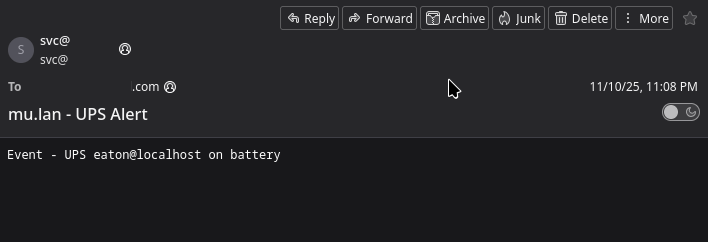
Next, we do dry runs of the script to confirm the email was forwarded correctly (using msmtp in the terminal to confirm the email and password are OK).
Note: you MUST validate the email forwarding is working before any further deployment and I simulated a failure in the UPS to confirm it was sending the alert triggered by the UPS.
6. Home Assistant dashboard
Home Assistant is a great tool for home automation, as I have shown in previous posts, I use it as a single pane of glass to monitor elements in the lab. For the UPS, we are going to use The NUT integration for Home Assistant.
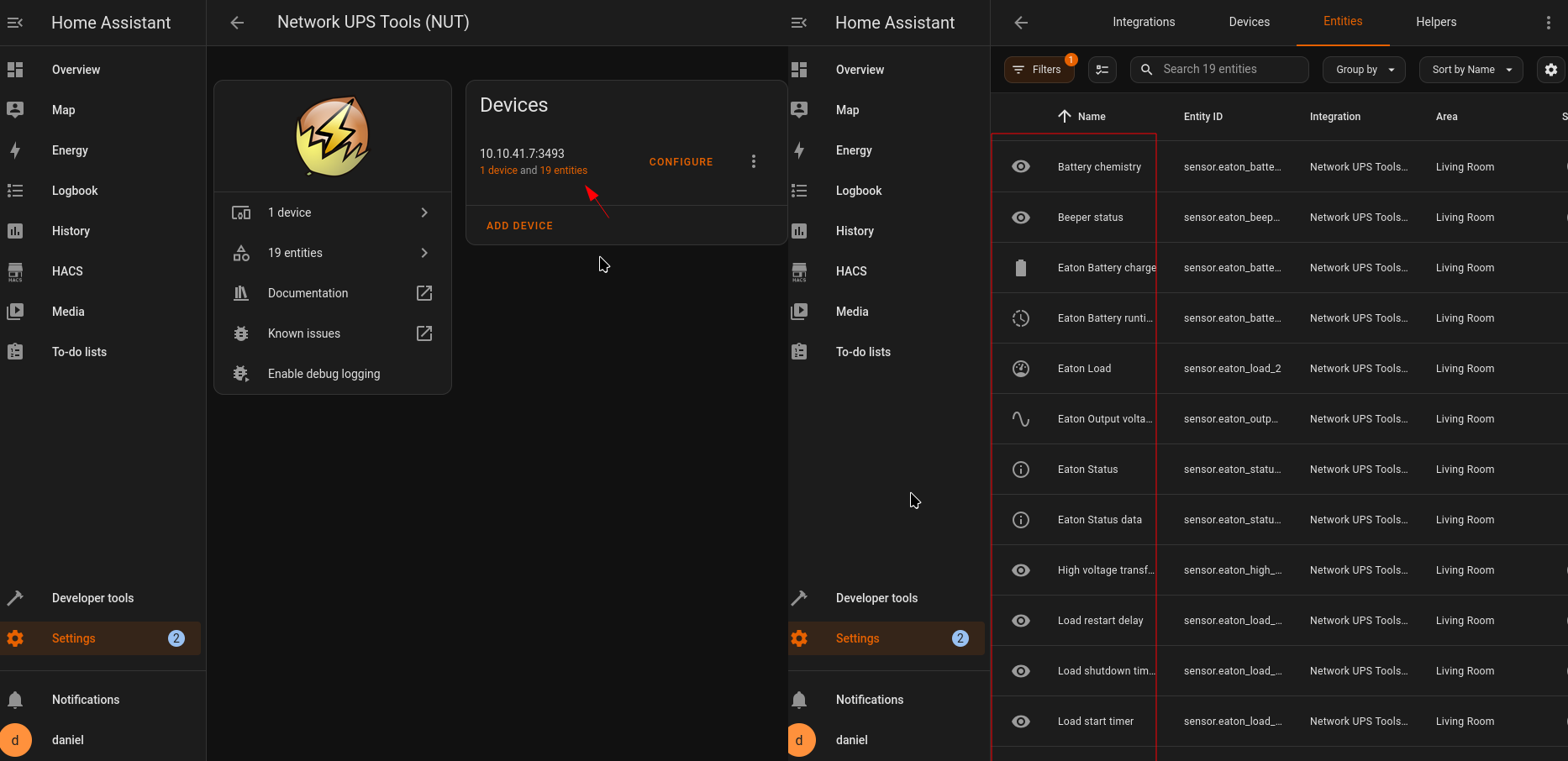
To deploy the tool we go to the previous link and click the button to add the integration (if you are in the same subnet from the Home Assistant server). Next, We will find it in the devices section
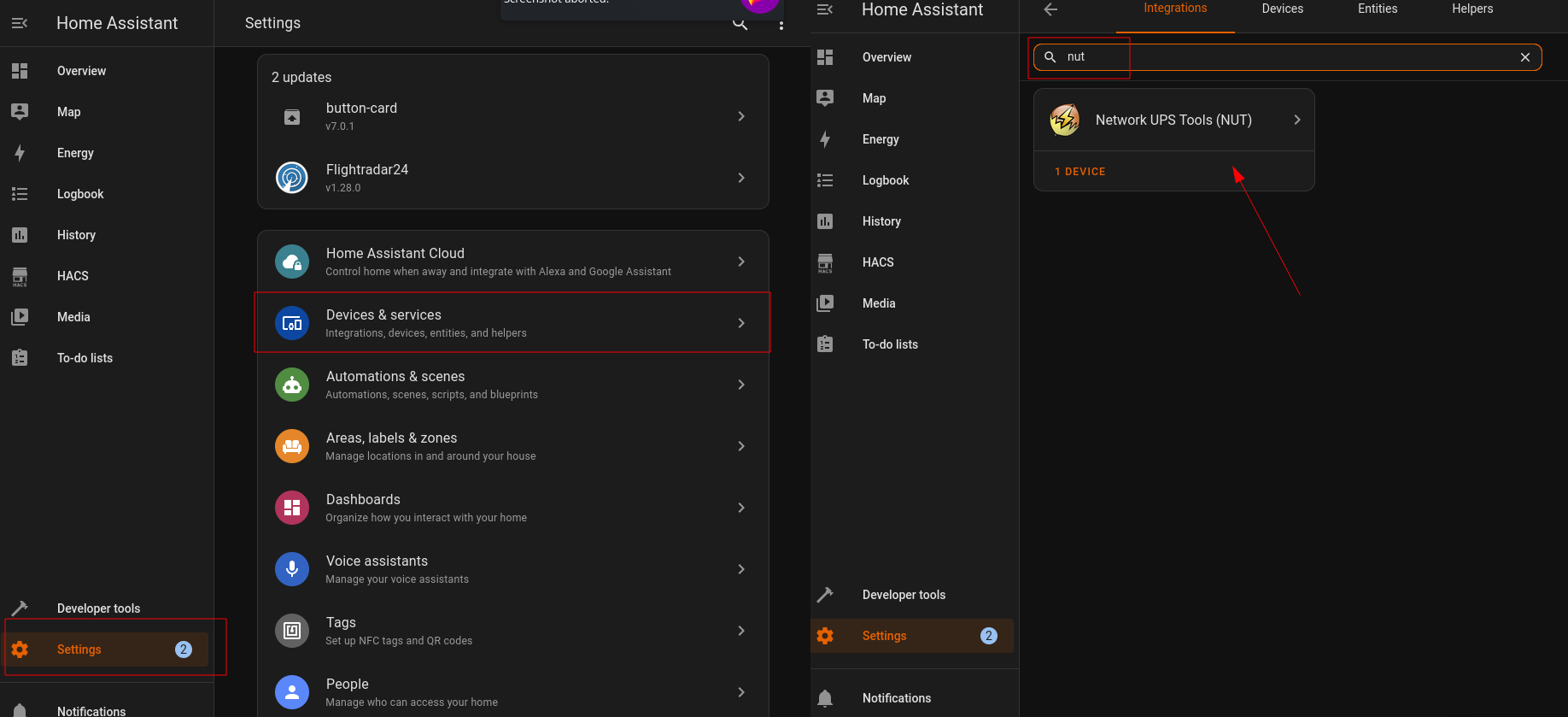
Next, we configure a new device.
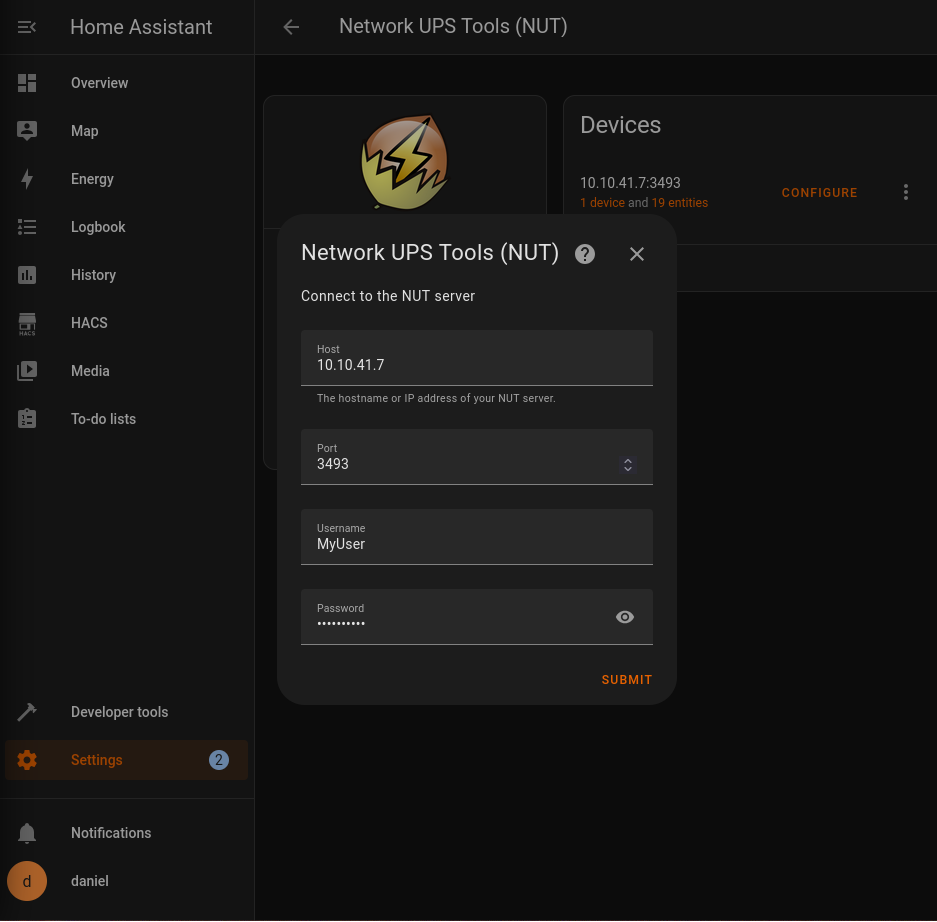
To find the used port to connect to the NUT server, we use the next one-liner (or we just search in the documentation):
☁  ~  sudo ss -uptan4l | grep upsd
tcp   LISTEN 0      16           0.0.0.0:3493       0.0.0.0:*    users:(("upsd",pid=32087,fd=4))
Its 3493/TCP. We also need the username and password configured locally in upsd.users.
After adding the device we will start receiving data from NUT server like in the figure below.
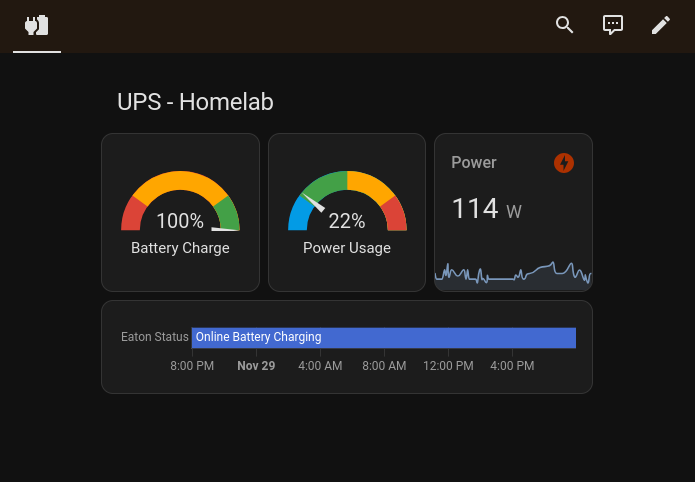
Now we create dashboard to monitor the UPS, here one example:
Note: Here is a great guide in how to create dashboards in Home Assistant
7. Wrap-up and takeaways
I finished the deployment some months ago, and until know it is reliable and useful to monitor the status of the power in the home lab. Likewise, I have peace of mind in case of electrical outage, I will have time to shut down the servers and network devices or keep them up while the electricity comes back.
Some extra functions to add in the future are automatic shut down of devices if the battery threshold goes under 20%, and add some new panels to the dashboard like nominal voltage.
By themselves, technical conversations tend to incentivize people to maintain status by criticizing ideas. Design can help mitigate those effects by giving conversations the structure of a game and a path to winning.